Monday, February 14, 2011

Atomic vs nonatomic properties in Objective C

What is the functional difference between these 3?
 
@property(nonatomic, retain) UITextField *userName;
@property(atomic, retain) UITextField *userName;
@property(retain) UITextField *userName;

 Answer :- 
The last two are identical; atomic is the default behavior.

With atomic, the synthesized setter/getter will ensure that a whole value is always returned from the getter or set by the setter, regardless of setter activity on any other thread. That is, if thread A is in the middle of the getter while thread B calls the setter, an actual viable value -- an autoreleased object, most likely -- will be returned to the caller in A.

Atomic guarantees that access to the property will be performed in an atomic manner. E.g. it will be thread safe, any get/set of a property on one thread must complete before another can access it.

In nonatomic, no such guarantees are made. Thus, nonatomic is considerably faster than atomic.


Below are some examples of what is actually happening in atomic & nonatomic

Atomic :


//@property(retain) UITextField *userName;
//Generates roughly
- (UITextField *) userName {
    UITextField *retval = nil;
    @synchronized(self) {
        retval = [[userName retain] autorelease];
    }
    return retval;
}
- (void) setUserName:(UITextField *)userName_ {
    @synchronized(self) {
      [userName_ retain];
      [userName release];
      userName = userName_;
    }
}


nonatomic : 


//@property(nonatomic, retain) UITextField *userName;
//Generates roughly
- (UITextField *) userName {
    return userName;
}
- (void) setUserName:(UITextField *)userName_ {
    [userName_ retain];
    [userName release];
    userName = userName_;
}


Sunday, February 13, 2011

How to add multiple static library files with different architectures to Xcode.


When you work with a static library (e.g. libCoolCode.a) for an iPhone project in Xcode, you can either have a fat binary that contains code for both the iPhone simulator and the iPhone device in the same file, or you may have two separate files that you need to add to Xcode.
Adding a single static library to Xcode is trivial. Here are the step by step instructions for the latter case.

1. Add the files to Xcode

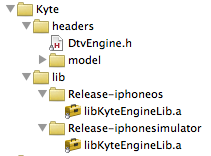
Use the normal Add > Existing Files… to add both the header files and the library files to your project. The result should look something like this:
LibraryAndHeaderFilesAddedToXcode.png


2. Add the header files to the search path

A static library comes with one or more header files (.h) that you need to add to your project build settings. (This step is the same for a single library file as for multiple files.)
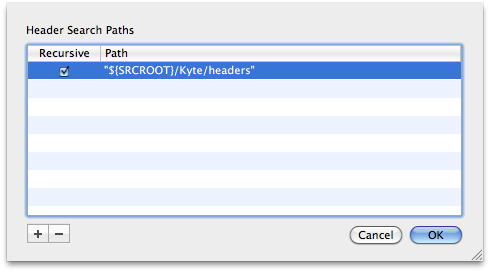
Open the build settings tab and find the “Header Search Paths” entry, and add the path to the directory with the header files.
AddHeaderSearchPathToXcodeBuildSettings.png

For this particular library there’s a model directory under the headers directory which also contains headers files. That’s why the Recursive checkbox is checked. The double quotes around the path are needed to handle paths with spaces.
If you try to build the project for the simulator at this point you’ll probably get a compiler warning like this:
file was built for unsupported file format which is not the architecture being linked (i386)


3. Remove the library files from the build target

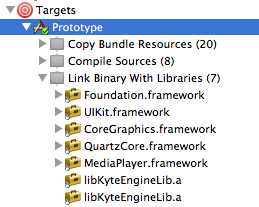
Open the Targets tab and the target of your project and you’ll see that the library files you just added were also added to the list of libraries to link with.

LibraryFilesInTargetLinkFolder.png

Delete these two entries.
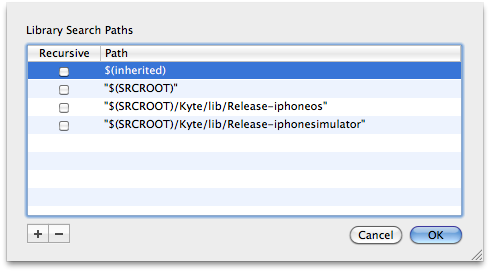
You may also have to delete these entries from the build settings. In the build settings tab find the Library Search Paths entry and delete the two entries.

DeleteLibrarySearchPathInXcode.png

That will get rid of the compiler warning above, but the linker will complain since the required libraries are no longer linked.

4. Add the libraries as other linker flags

Again go to the build settings tab and now find the Other Linker Flags (OTHER_LDFLAGS) entry.
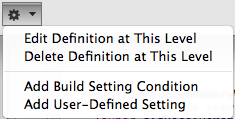
Highlight the Other Linker Flags entry and click on the tool drop down button at the bottom of the window.

XcodeBuildSettingsToolsDropDownMenu.png

Select Add Build Setting Condition from the drop down menu. This will add a new line under the Other Linker Flags entry. Change the first drop down from Any SDK to Any iOS Simulator. Leave the second drop down as Any Architecture. In the value field enter the path and name of the library file built for the simulator. Repeat this step for the device build, selecting Any iOS Device. The result should look similar to this (your paths will of course be different):

OtherLinkerFlagsConditionalBuildSettings.png


Your project should now compile and run for both the simulator and the device.